

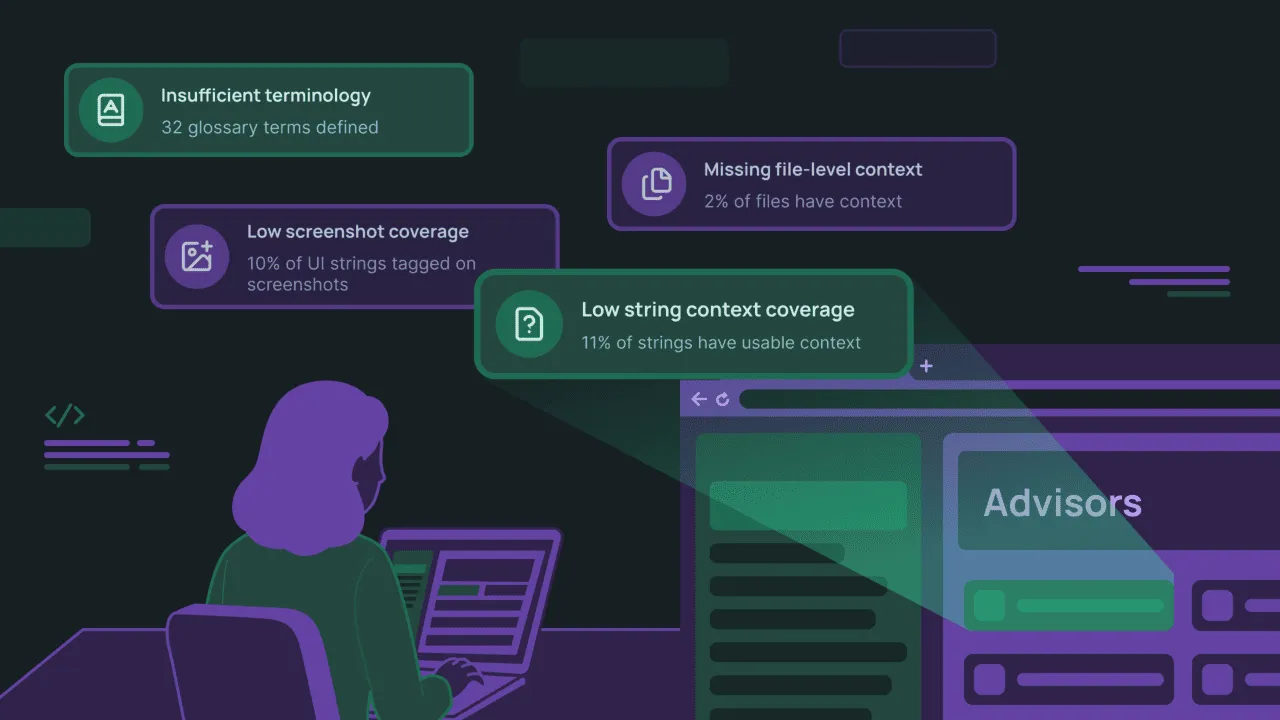
When you manage multiple localization projects or work with always-changing content, keeping track of project health is difficult. Missing glossaries, unattached style guides, or strings without context lead directly to poor translation quality – whether you use human translators or AI.
To fix this, we built Advisors. It works as a background analyzer for your localization configurations. It monitors your setup against quality standards and flags missing or under-configured resources before translations even begin.
| Crowdin Advisors | |
|---|---|
| What is it? | An automated background analyzer for your localization configuration. |
| Will be useful for | Project owners and managers – whether operating without a localization expert or overseeing a large number of projects at scale. |
| What does it do? | Automatically scans your setup, flags configuration issues (like missing screenshots, weak context, or loose character limits), and offers solutions to fix them before translation starts. |
Let’s learn more about it and see real examples of when it will be useful for you.
Core problems Advisors solve
Traditionally, ensuring a project is ready for translation requires manual checks. You have to verify if screenshots are uploaded, if character limits are set, and if the right glossaries are assigned.
Advisors automates this verification. It surfaces issues as actionable recommendation cards in a single dashboard, helping you in four main areas:
- Guided onboarding – When creating a new project, Advisors points out exactly what is missing (e.g., style guides, terminology) so you don’t have to guess.
- Verification at bulk – If you manage dozens or hundreds of projects, you can open any project and instantly see if its setup matches organization standards without clicking through individual settings.
- AI translation readiness – As we know, machine translation and AI models heavily rely on context and glossaries for accurate output. Advisors ensures these assets are active before you run automated translations.
- Configuration mismatch – As projects evolve (for example, new target languages are added or there is a shift from technical documentation to marketing copy), Advisors flags settings that have fallen behind the new content requirements.
How these checks work
Advisors currently includes 11 built-in checks designed to audit your project health. To keep the analyzer fast, efficient, and predictable, it splits its logic into two approaches:
- Rule-based automation (10 checks): – Advisors run using deterministic system rules. It checks your file structures, looks for missing assets, verifies connected communication channels, or flags missing style guides without making any external AI calls.
- Only a single check (Low string context coverage) uses AI. Because evaluating whether a string’s description is actually “useful” requires deep semantic understanding, it uses an LLM. Crowdin doesn’t use a hardcoded, hidden model for this. It runs entirely through your user-configured AI providers and your own custom Context Review prompts, giving you full transparency and control over the evaluation logic.
Out of the 11 available automated audits, let’s look at some of those key insights in action.
Advisors in action: Real dashboard examples
Catching a UI overflow or a mistranslated button in Crowdin costs ~0 dollars. But fixing a broken UI post-deployment requires hotfixes, developer hours, and breaks the user experience.
The Advisors tab is available to project managers and owners. The tool automatically hides checks your project already passes and sorts active issues by severity.
Case 1: Unresolved context issues
Every unresolved issue is a direct signal that ambiguity is blocking your translation workflow. When translators or AI models encounter a string without enough context, they are forced to make judgment calls or open a ticket.
Leaving queries unanswered leads to serious bottlenecks and quality risks. Each open request represents a string that is effectively stalled across all target languages, pushing back your deadlines. Even worse, if deadlines are tight and translators guess the meaning to meet them, they create invisible mistakes that damage the end-user experience. For AI models, the lack of clarity causes them to hallucinate or choose the wrong register entirely.
- Finding: The analyzer flags that there are 13 open context issues, with the longest wait time reaching an incredible 42 days.
- Instead of looking through individual comment sections across all files, the recommendation card provides an Address Context Blockers shortcut. Clicking Review takes you straight to the Editor, filtered specifically to those unresolved issues so you can unblock your team and clear semantic ambiguity immediately.
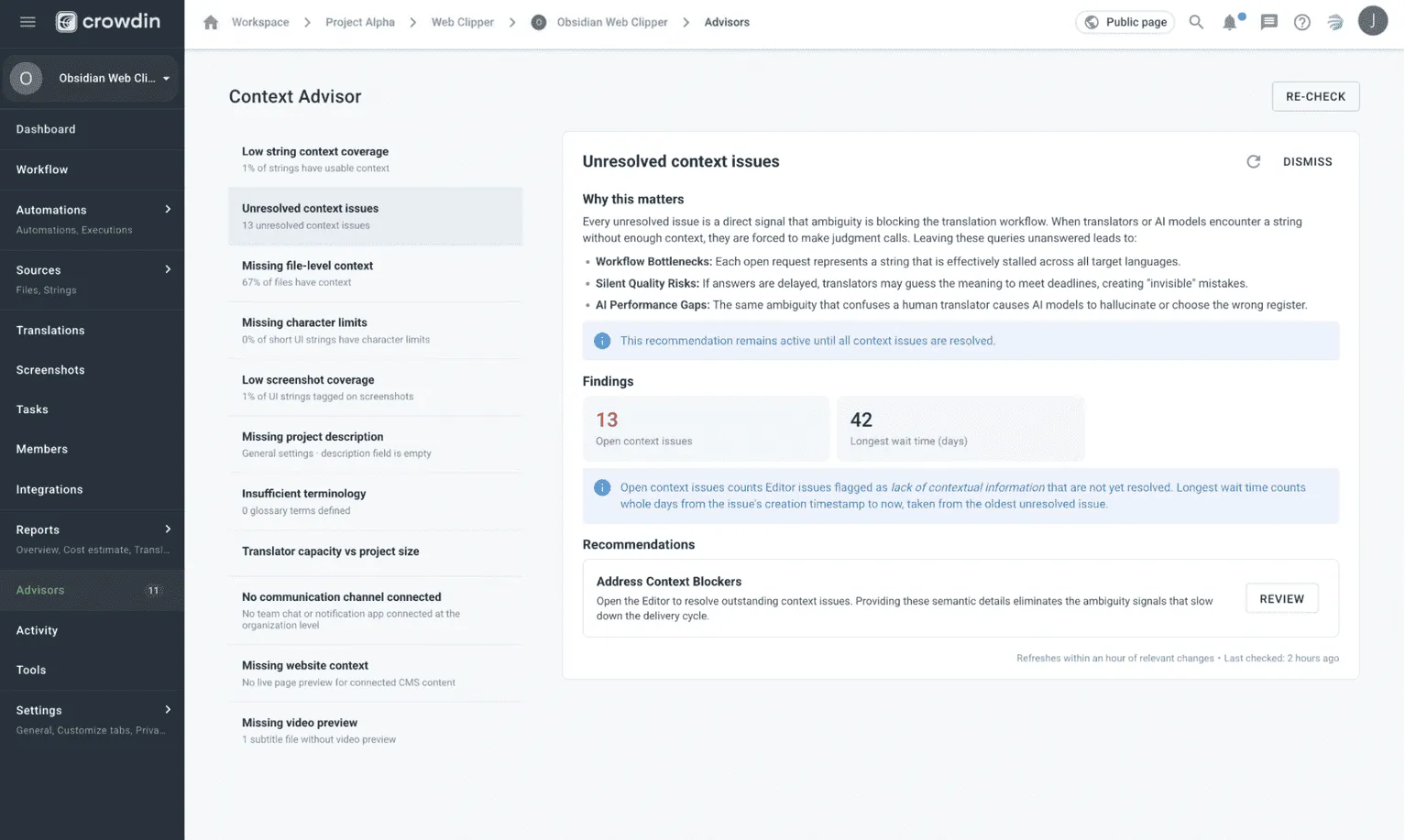
Advisors inside Crowdin Enterprise interface
Case 2: Low string context coverage
High-quality string context is the primary communication channel between developers, translation teams, and AI models. However, not all context is created equal. This check scans software-centric formats (.json, .xml, .strings, etc.) to evaluate if the text metadata is actually usable.
Raw technical paths tell a translator or an AI model nothing about intent. Without human-readable description fields defining Intent & Placement (is it a button or a tooltip?) or Variable Semantics (what does {user} actually represent?), translations suffer from wrong grammatical forms and gender/case mismatches.
- Finding: Advisor flags that context coverage is at 17.6%. Also, it filters out “garbage” context: as you can see on the screenshot below, it detects 26 strings with technical-only context (like raw XPaths, dot-paths like
app.settings.title, or bare identifiers) and checks for key duplication (where the developer just copied the string key into the description field). - Actionable recommendation stays active until at least 50% of your UI strings have descriptive context, giving your engineering team a clear quality benchmark to meet before sending strings to translation.
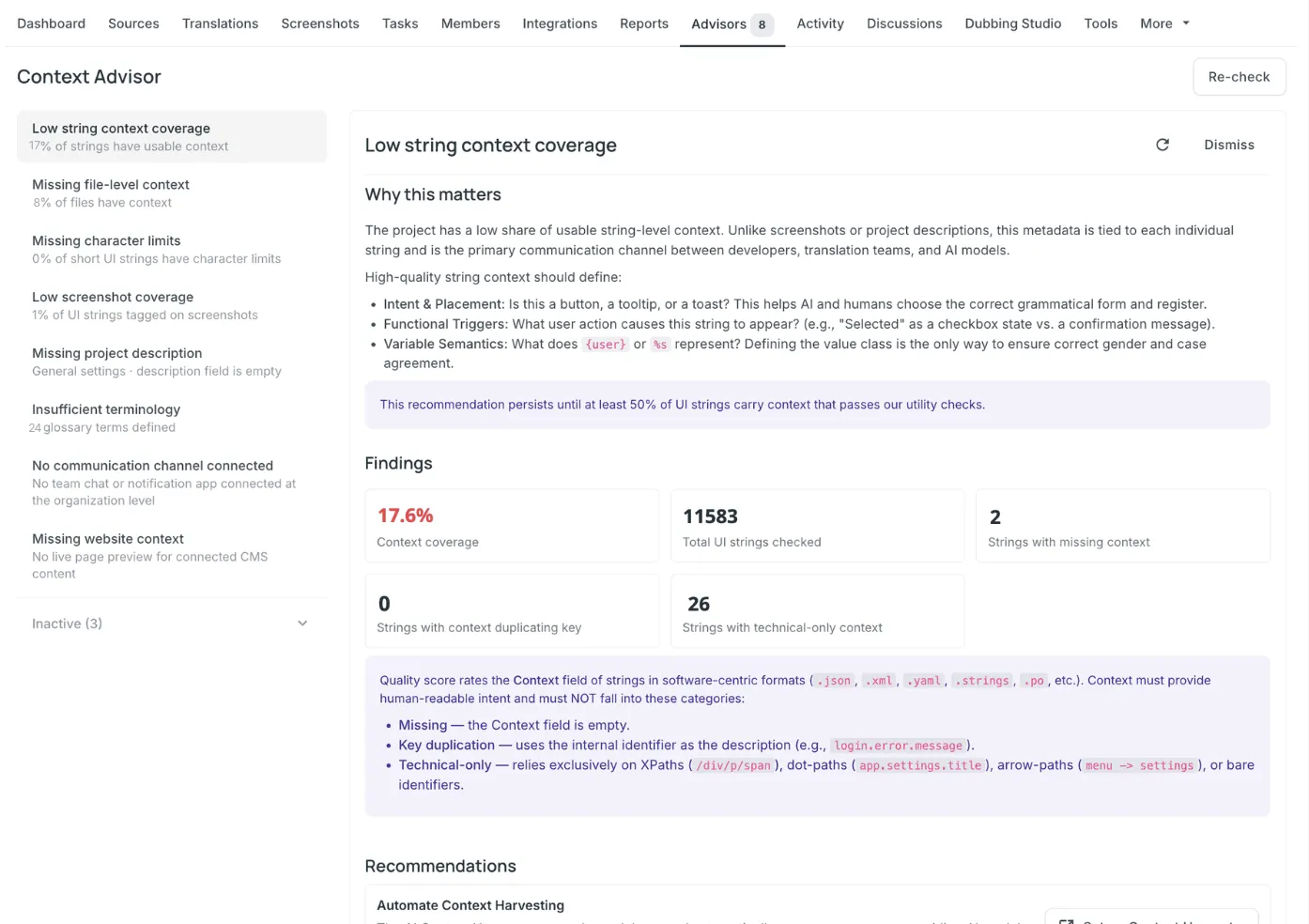
Advisors inside crowdin.com interface
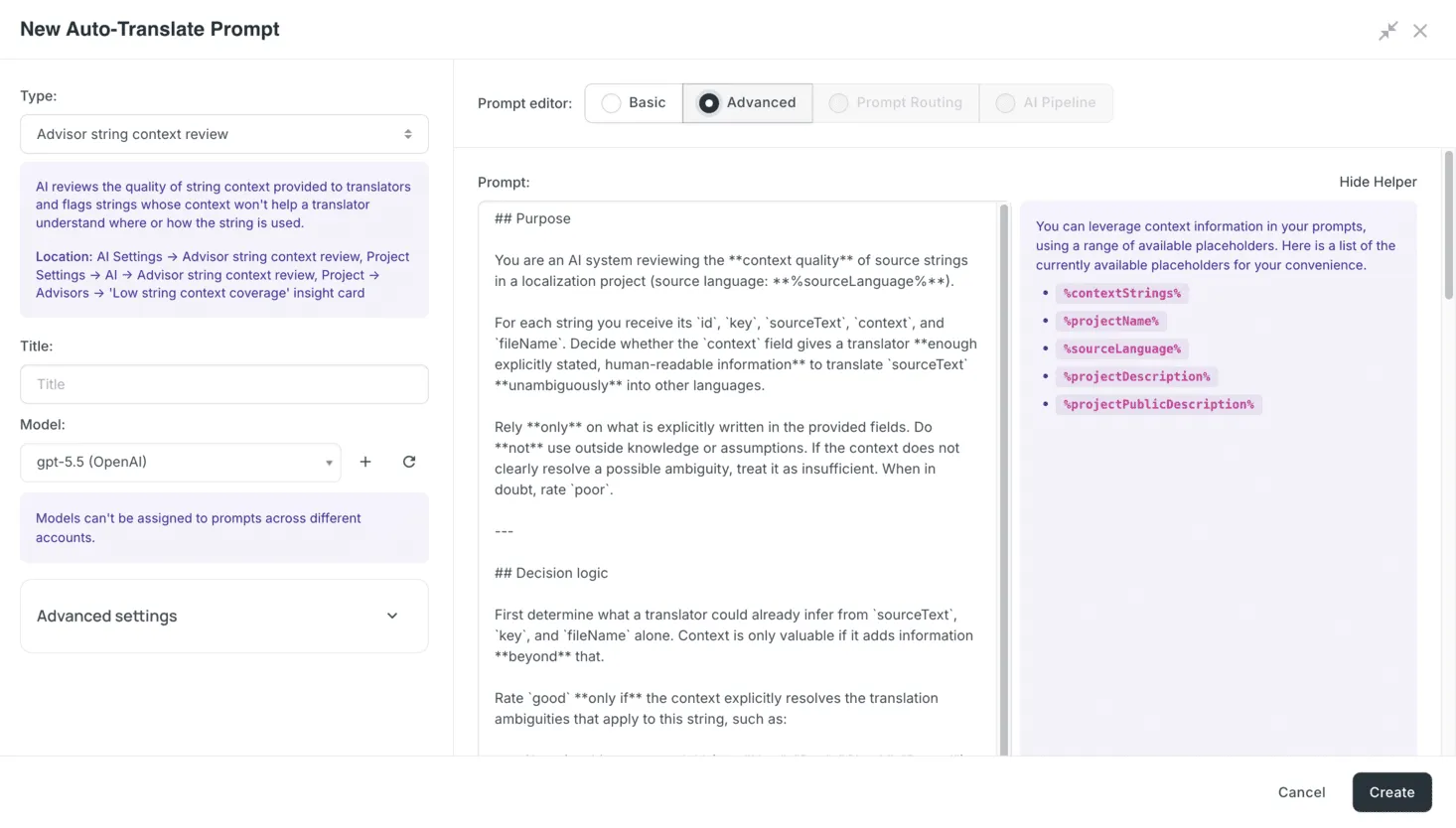
Unlike standard rule-based checks, the string context analysis relies on your own AI setup. To activate this check, go to your AI Settings, configure a provider, and create a new AI prompt of type “Advisor string context review”. This gives you full control over which LLM model evaluates your source string descriptions and how strictly it judges their utility.
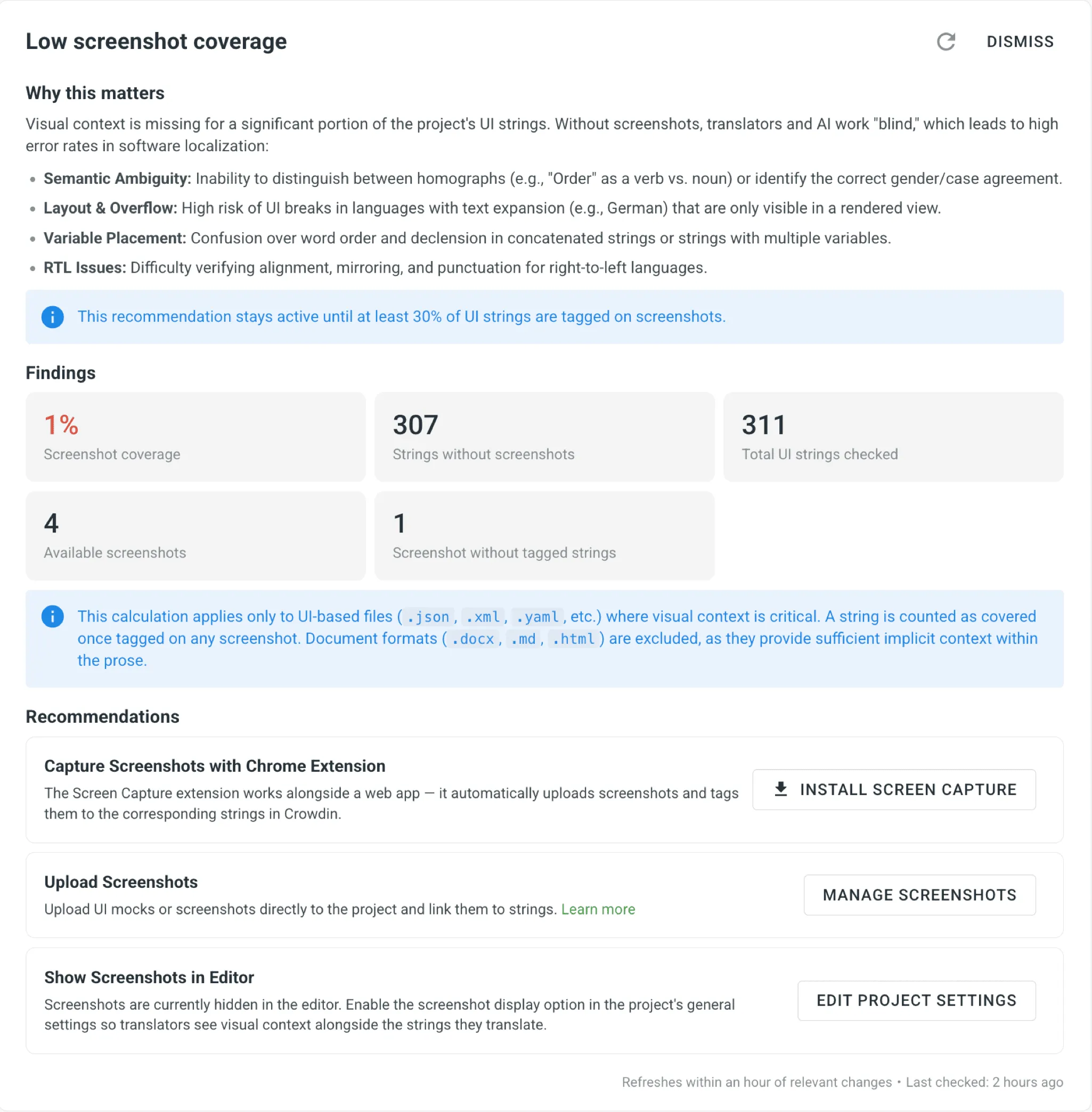
Case 3: Low screenshot coverage
If translators or AI work without visual context, error rates spike. Advisors calculates this metric specifically for UI-based files (like .json, .xml, .yaml), automatically excluding prose formats like .md or .docx where context is already implicit.
Translating without seeing the UI forces both human translators and AI to guess, which leads to expensive post-deployment bugs. For example, text-expanding languages like German or Finnish can grow by up to 200%, easily breaking buttons or overlapping text if layouts aren’t verified. Visual context also eliminates semantic ambiguity (ensuring homographs like “Order” or “Change” aren’t confused between nouns and verbs). It also prevents layout and punctuation breaks in right-to-left (RTL) languages like Arabic or Hebrew.
- Finding: Advisor detects that screenshot coverage is at just 1%, leaving 307 strings completely in the dark.
- The recommendation provides direct next steps. For example, you can click to install the Screen Capture Chrome Extension, which automatically uploads and tags web application screenshots directly to your Crowdin strings.
Case 4: Missing character limits
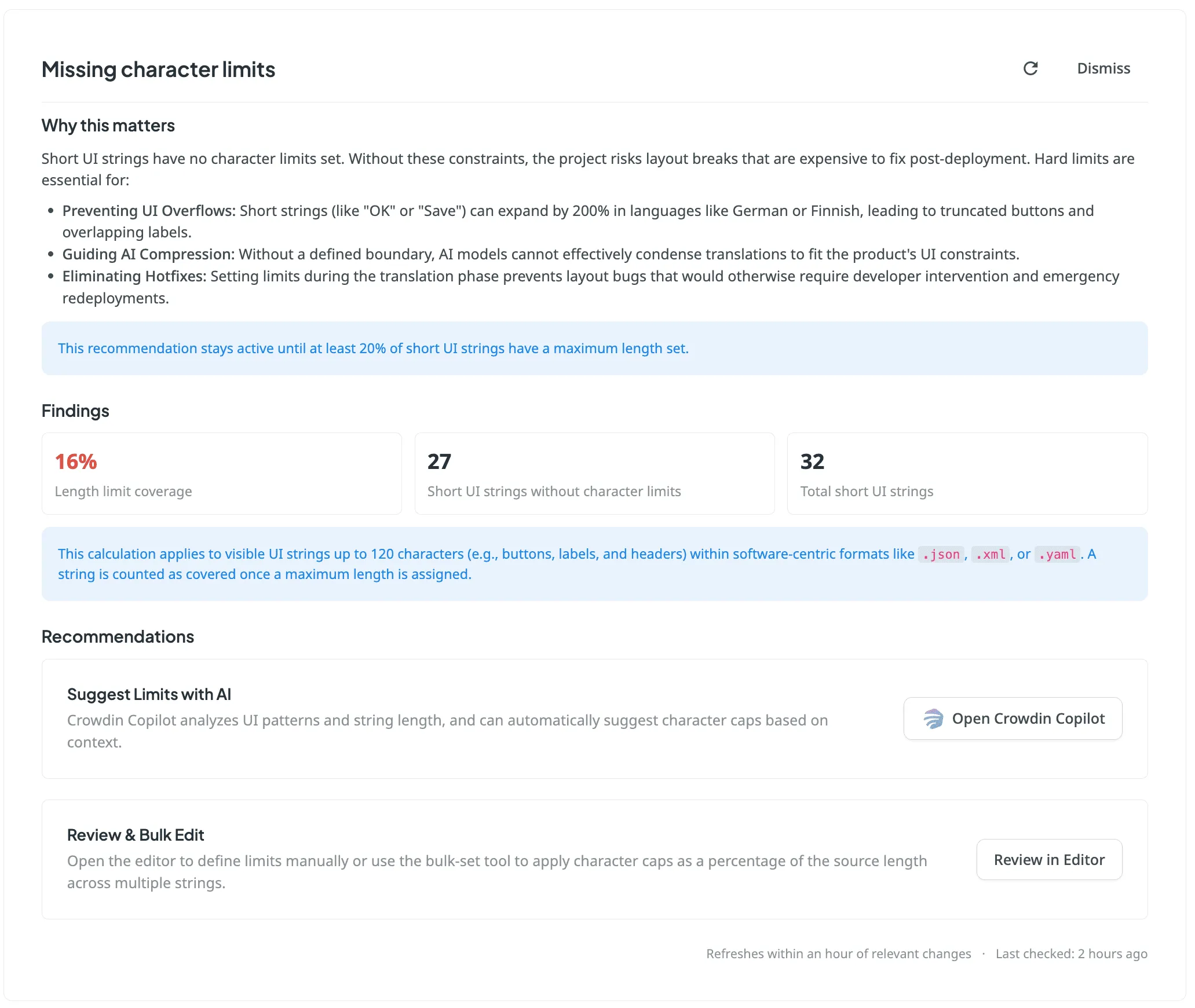
Short UI strings (like OK, Save, or navigation labels) require strict length boundaries to protect your application UI layout.
Without boundaries, translated strings can expand by over 200%, leading to clipped text or overlapping buttons. Furthermore, without a defined cap, AI models cannot effectively condense translations to fit your product’s UI constraints.
- Finding: Crowdin Advisor catches that only 16% of short UI strings have length restrictions, leaving strings vulnerable to breaking your design post-deployment.
- Recommendation: Advisor integrates directly with your automated tools. The card allows you to Suggest Limits with Crowdin Copilot, which analyzes your source string patterns and applies caps automatically. Alternatively, a quick link lets you bulk-edit the strings inside the Editor.
From insights to resolution
As you can see from these cases, Advisors does not just point out errors – it identifies problems and advises on how to fix them. You can do:
- One-click fixes – most cards include direct actions, so you can fix the issue without digging through project settings.
- Dismiss non-urgent items – if a specific recommendation isn’t relevant to your current sprint, click Dismiss. It moves to a collapsible sidebar, keeping your main list focused on actionable items while remaining monitored in the background.
- Re-checks – Advisors refresh automatically within an hour of any project changes (or within a day for heavy string context scans). If you’ve just fixed an issue and want to verify it immediately, click Re-check to force an instant manual rerun.
Custom Advisors
Need checks tailored to your specific workflow, industry compliance rules, or UI layout restrictions? You can now build Custom Advisors using Crowdin’s vibe-coding app—no coding skills required! Simply describe what you want to detect in plain language, deploy your app, and automate your unique QA checks before translation even begins.
Automation via API
For teams running automated localization pipelines or continuous deployment, Advisors functionality is fully exposed via the Crowdin API. Without opening the UI, your development team can:
- Fetch current health metrics and active findings.
- Dismiss or reactivate specific recommendations.
- Force a project-wide re-check inside CI/CD workflows.
This allows you to pull project health metrics directly into your internal dashboards or use them as automated quality gates in your deployment pipelines.
Getting started
Now that you have seen how Advisors insights can prevent broken layouts, mistranslated strings, and workflow bottlenecks, it’s time to check your own projects.
Go to your Crowdin project dashboard, click the Advisors tab, and run your initial check. It takes less than a minute to see exactly where your setup stands and get the immediate, one-click recommendations you need to optimize your localization pipeline.
Localize your product with Crowdin
FAQ
How often does Crowdin Advisors scan my project?
Advisors runs automatically in the background. It refreshes within an hour of any minor project changes and runs full context updates daily. If you have just made fixes and want to see the updated metrics immediately, you can use the manual Re-check button.
Does using Advisors incur any extra costs or consume my AI tokens?
10 out of the 11 checks are rule-based and run completely free with no usage limits. Only the Low string context coverage check uses AI. It runs through your own user-configured AI providers and custom prompts, meaning it uses your linked API keys or Managed by Crowdin token balance.
Can I ignore or turn off specific recommendations?
Yes. If a check isn’t relevant to your current workflow, click Dismiss on the recommendation card. This clears it from your main dashboard view and moves it to a collapsible sidebar, ensuring it doesn’t clutter your space while still tracking project status in the background.

Yuliia Makarenko
Yuliia Makarenko is a marketing specialist with over a decade of experience, and she’s all about creating content that readers will love. She’s a pro at using her skills in SEO, research, and data analysis to write useful content. When she’s not diving into content creation, you can find her reading a good thriller, practicing some yoga, or simply enjoying playtime with her little one.